Top 10 Simple Things Every Computer User Should Know How to Do
Get link
Facebook
X
Pinterest
Email
Other Apps
Zeeshan Mir Baz has collected the information from this website:https://lifehacker.com/5941496/top-10-simple-things-every-computer-user-should-know-how-to-do in this article
No matter how tech savvy you are, there are certain things every one of us has to deal with when using a computer—and we don’t always deal with them in the most efficient ways. Here are 10 things that everyone can (and should) learn to keep their computer fast, safe, and easy to use.
Here at Lifehacker, we take a lot of the simpler stuff for granted: how to avoid viruses, use keyboard shortcuts, or even keep your data backed up. Even if you’ve mastered all of these tricks (and there’s a good chance you haven’t), you may want to send this along to some of your less computer-savvy friends. After all, the more they know how to do, the less they’ll call you for help. If you’re looking for some more advanced tricks, we’ve got them for you here.
10. Set Up a Simple Backup System
We all know we should back up our computers, but it’s always one of those things that you’ll set up “one day”. Setting up a backup only takes minutes, though, so you can do it right now and forget about it until you need it—and when you do need it, you’ll be glad you set it up. If you’re just backing up to an external drive, you can just use the simple tools built in to your computer, like Windows Backup or Apple’s Time Machine. However, that’ll only keep you safe if your computer fails. If you lose your home in a fire, get all your gear stolen, or experience any other kind of disaster (God forbid), you’ll have lost all those important documents, family photos, and other files forever. So, we recommend using a service like CrashPlan to back up your computer online. That way, it can back up no matter where you are, and that data will be safe no matter what happens to your hardware.
9. Do Everything Faster with Shortcuts
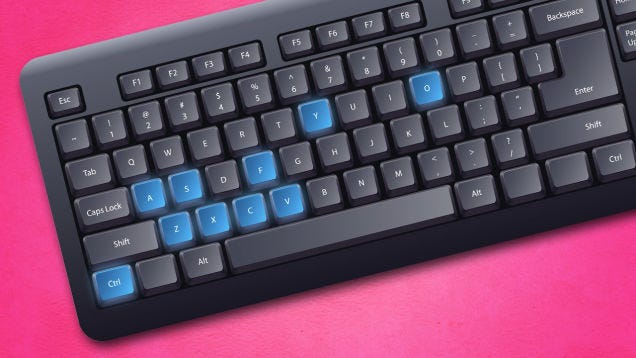
The great thing about computers is that they can do a lot of things much faster than a human. Say you’re looking for a specific word on a web page. Instead of scanning it yourself, all you need to do is press Ctrl+F and type the word you’re looking for. There are mountains of shortcut like this, from pressing Ctrl+S to instantly save the file you’re working on, Ctrl+P to print it out, or Ctrl+T to open a new tab in your web browser. It may seem like more trouble than its worth at first, but after you use a shortcut one or two times, you’ll wonder why you ever did anything with the mouse. Check out our list of six shortcuts everyone should know, as well as our shortcut of the day series for even more tricks.
Understanding routers, modems, and the other things that make up your network can seem daunting, but there are a few basics that can fix most problems that come your way. Does your router constantly need resetting? Make sure it isn’t overheating or clogged with traffic. Is your Wi-Fi speed and range less than ideal? Use one of these tricks to give it a boost. If you experience more serious problems, you can probably fix them yourself too. Check out our complete guide to knowing your network for more info—it’s got everything you need to know, from buying a router to setting up your network and more.
6. Keep Your PC Free of Crap
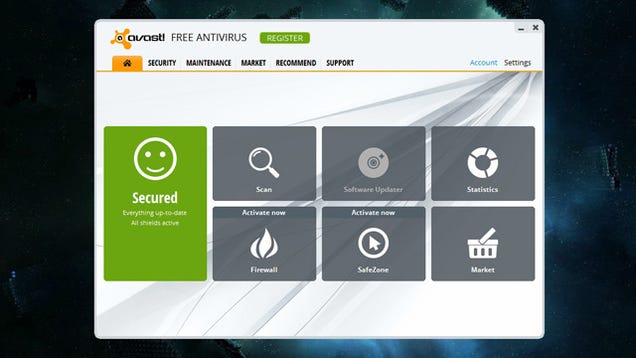
Ever wonder how that Yahoo toolbar got on your system, or why there’s so much junk installed on your brand new machine? Crapware is a huge problem in the world of Windows, but that doesn’t mean you have to take it lying down. With the right tools and a little know-how, you can avoid that crapware forevermore: just uninstall the stuff that came with your system, and learn the ways companies trick you into installing stuff you don’t want. You’ll keep that system nice and clean, and beat the scammers at their own game.
5. Access Your Home Computer From Anywhere
Ever go out with your laptop and realize you left something important on your computer at home? One way to solve this problem is to use a service like Dropbox, so your files are with you everywhere you go. However, it’s also handy to know how to use your home computer from anywhere. With a simple app like TeamViewer, you can log into your home computer from another machine and use it as if you were sitting right at your desk—whether you just need to grab a quick file or access a program you don’t have elsewhere.
4. Keep Your Computer in Tip-Top Shape with Regular Maintenance
Computer maintenance has gotten really confusing over the years. Between defragging, cleaning up temporary files, and other tasks, it’s almost like trying to maintain a car. Luckily, it’s gotten a lot easier in recent years: you only really need to do one or two things to keep your computer running fast and smooth. Check out our guides to Windows maintenance and Mac maintenancefor more info and keep your PC running like new. And if your phone’s feeling a little sluggish, we have guides for iOSand Android, too.
3. Instantly Share a File Between Two Computers
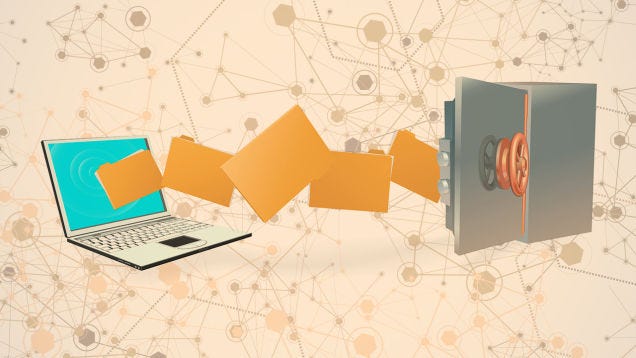
So you’ve got some files you want to give to your friend sitting next to you, but your flash drive has mysteriously gone missing. Well guess what? You don’t need it! It’s very easy to transfer a file between two computers over your wireless (or wired) network, whether it’s between you and a friend or between multiple computers you own. Here are our favorite ways to share files with a nearby computer, but if you want to share them between multiple computers in your house, Windows’ Homegroup feature is a great option. Of course, this is where the aforementioned Dropbox app can come in handy, too.
2. Easily Find Your Lost or Stolen Gadgets
You never know when you might misplace your phone, laptop, or other tech, so set up some safeguards now. iPhone users can enable Find My iPhone, and Android users should enable the Android Device Manager, which allows you to track your phone if you lose it. Of course, you can always get a more feature-rich app like Prey, which can track nearly any laptop or smartphone that’s gone missing, and even get a photo of who might be using it. If you’re missing a camera, the CameraTrace service can help you find it, too. Of course, the best solution is making sure it doesn’t get stolen in the first place, and making sure all your personal data is locked down. Which brings us to our last tip...
Zeeshan Mir Baz has collected the information from this website:https://www.technologyreview.com/s/412880/the-best-computer-interfaces-past-present-and-future/ in this article said that: Say goodbye to the mouse and hello to augmented reality, voice recognition, and geospatial tracking. by Duncan Graham-Rowe April 6, 2009 Computer scientists from around the world will gather in Boston this week at Computer-Human Interaction 2009 to discuss the latest developments in computer interfaces. To coincide with the event, we present a roundup of the coolest computer interfaces past, present, and future. Multitouch screen: Microsoft’s Surface is an example of a multitouch screen. The Command Line The granddaddy of all computer interfaces is the command line, which surfaced as a more effective way to control computers in the 1950s. Previously, commands had to be fed into a computer in batches, usually via a punch card or paper tape....
If you’ve just upgraded to Windows 10, you’re probably wondering what to do next with Microsoft’s newest operating system. Here are 10 things you do before trying anything else. By Julian Prokaza Last updated: 15 August 2017, 16:41 BST Print this story With the Windows 10 upgrade out of the way, you’re no doubt itching to try out Microsoft’s latest operating system to see what’s new. But the question is, where to start? We suggest following this 10-point list of tasks once you see the new Windows 10 Desktop for the first time — it’ll help make sure everything is working as well as can be and familiarise you with the main new features. Check out our video by clicking play below to find out more. [Read more: 5 secret Windows 10 tricks you need to know about] Step 1: Run Windows Update If you followed our advice when installing Windows 10 , you’ve already checked for any last-minute updates prior to the installation, but it’s wo...
Zeeshan Mir Baz has collected the information from this website:https://www.rasmussen.edu/degrees/technology/blog/ways-computer-science-benefits-society/ in this article By Megan Ruesink on 12/7/2015 said that: When you think about your future career, you know one thing for certain: you want to help people. Nursing and teaching are often the obvious answers, but you’re looking to leverage your love of technology to make a difference. You’re aware of the exciting career opportunities in computer science , but you might be surprised to learn about the important roles computer scientists play in our society. While the impact may not be as obvious as that of a nurse or teacher, these tech pros are working hard behind the scenes to make a difference. If you want some concrete examples of just how much computer science benefits society, you came to the right place! Keep reading to learn how these professionals are positively impacting our world and helping ot...
 9/08/12 1:00pm said that:





Comments
Post a Comment